User Guide
Contents
1 Overview
KEOLP (Key-phrase Extraction for Ontology & Labeling Platform) is a web application for extracting candidate key phrases from biomedical text (typically PubMed abstracts), letting multiple reviewers annotate them independently, and building a consensus gold-standard list for downstream research.
Typical workflow:
- A reviewer logs in.
- They paste a paper's title and abstract — or enter a PubMed ID and let the app fetch them.
- The NLP model returns predicted candidate key phrases with confidence scores.
- The reviewer marks each predicted phrase Yes / No / Not Sure.
- After several reviewers have annotated the same paper, an admin uses the Consensus view to finalize a gold-standard list.
2 Logging in
Click Login in the top navigation bar, then enter your reviewer username and password. Currently only assigned username and password are supported.
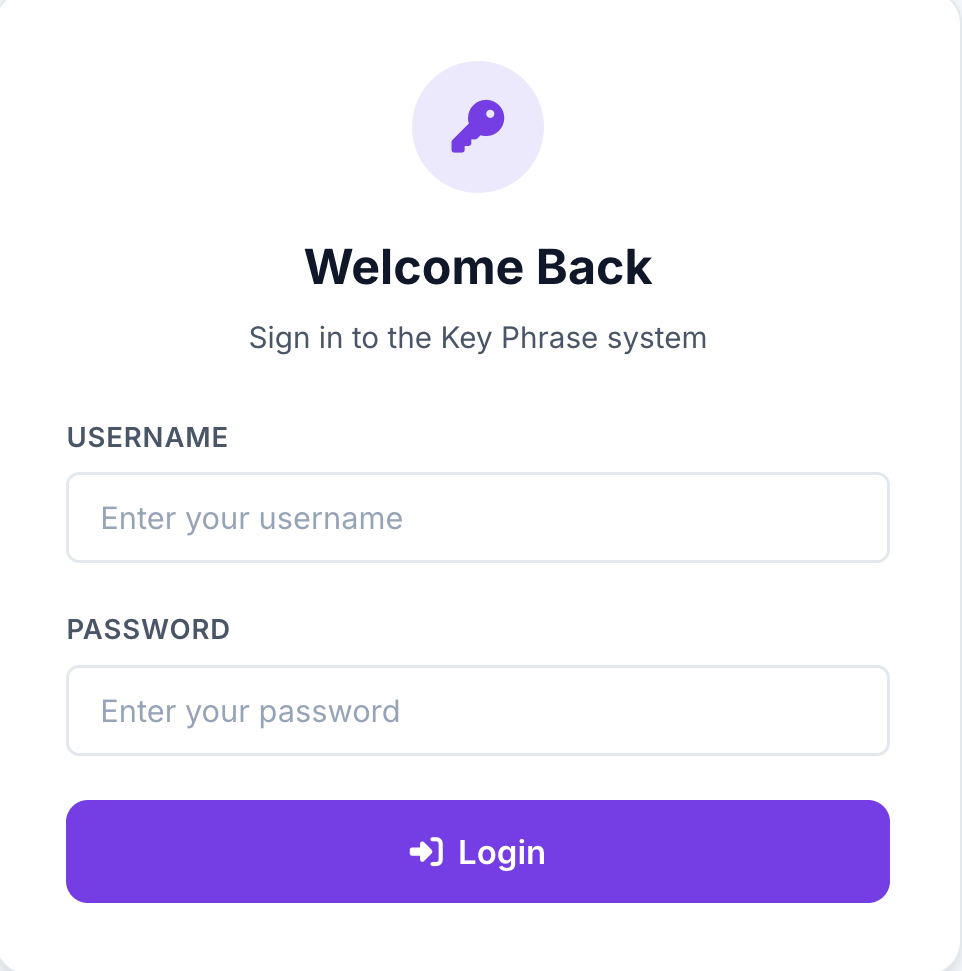
After login you land on the Selection page.
3 Choosing an input method on the Selection page
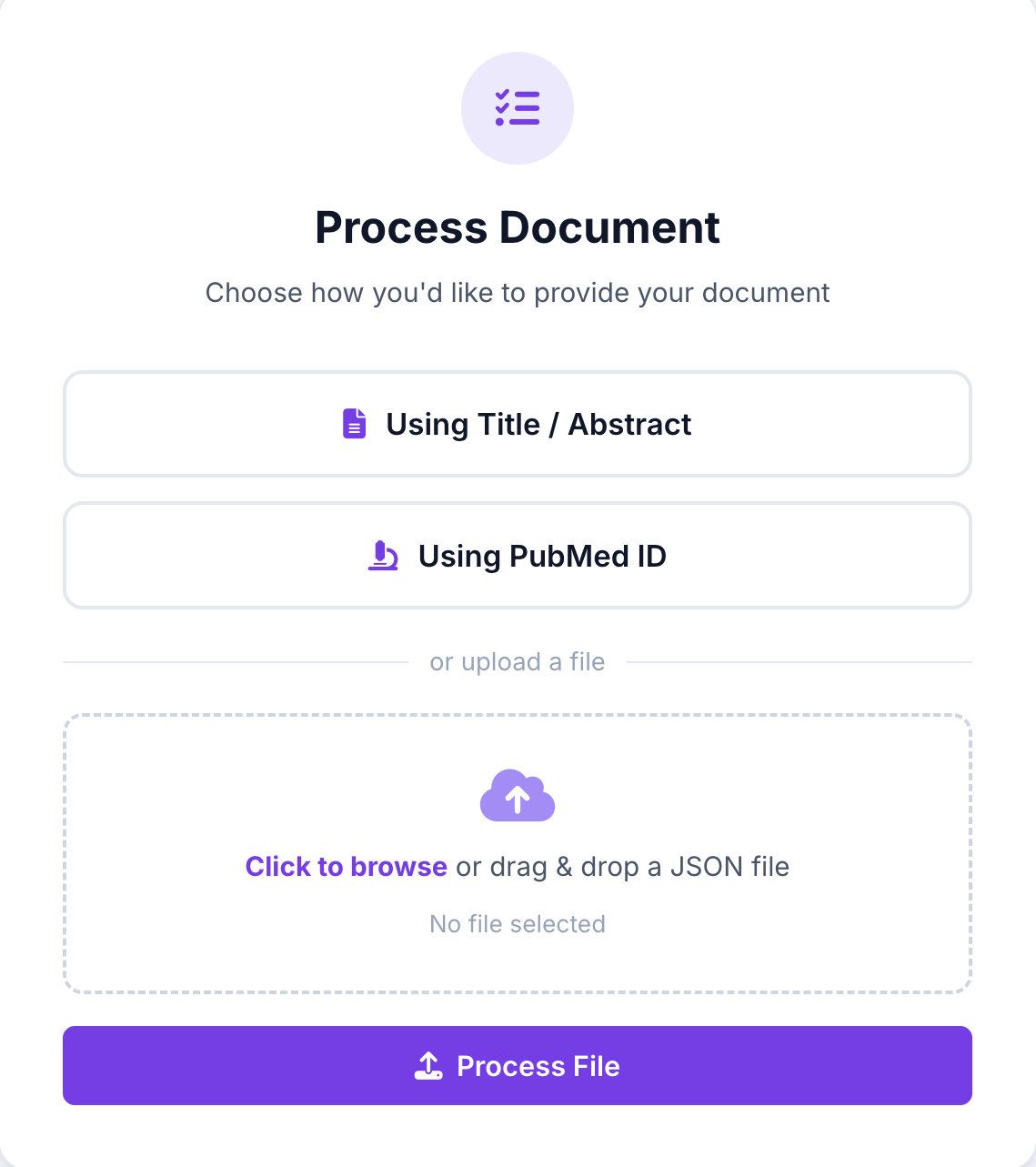
The Selection page offers three ways to provide documents to the predictor. The first two handle one paper at a time; only JSON upload supports batches:
- Enter Abstract — one paper at a time. Paste a single title and abstract manually.
- Enter PubMed ID — one PubMed ID at a time. Type a single PubMed ID and the system fetches that paper's title and abstract automatically from NCBI.
- Upload JSON — one or many papers at once. Upload one or more JSON files; each file may contain a single document or an array of documents.
Each document is an object with title, abstract, and an optional
pubmedID. A batch file is simply an array of these objects:
[
  { "title": "First paper title",  "abstract": "First abstract text...",  "pubmedID": "29033469" },
  { "title": "Second paper title", "abstract": "Second abstract text...", "pubmedID": "" }
]
After upload, every document is run through the predictor and the results are collected on the Review page so you can annotate the whole batch.
4 Getting predictions
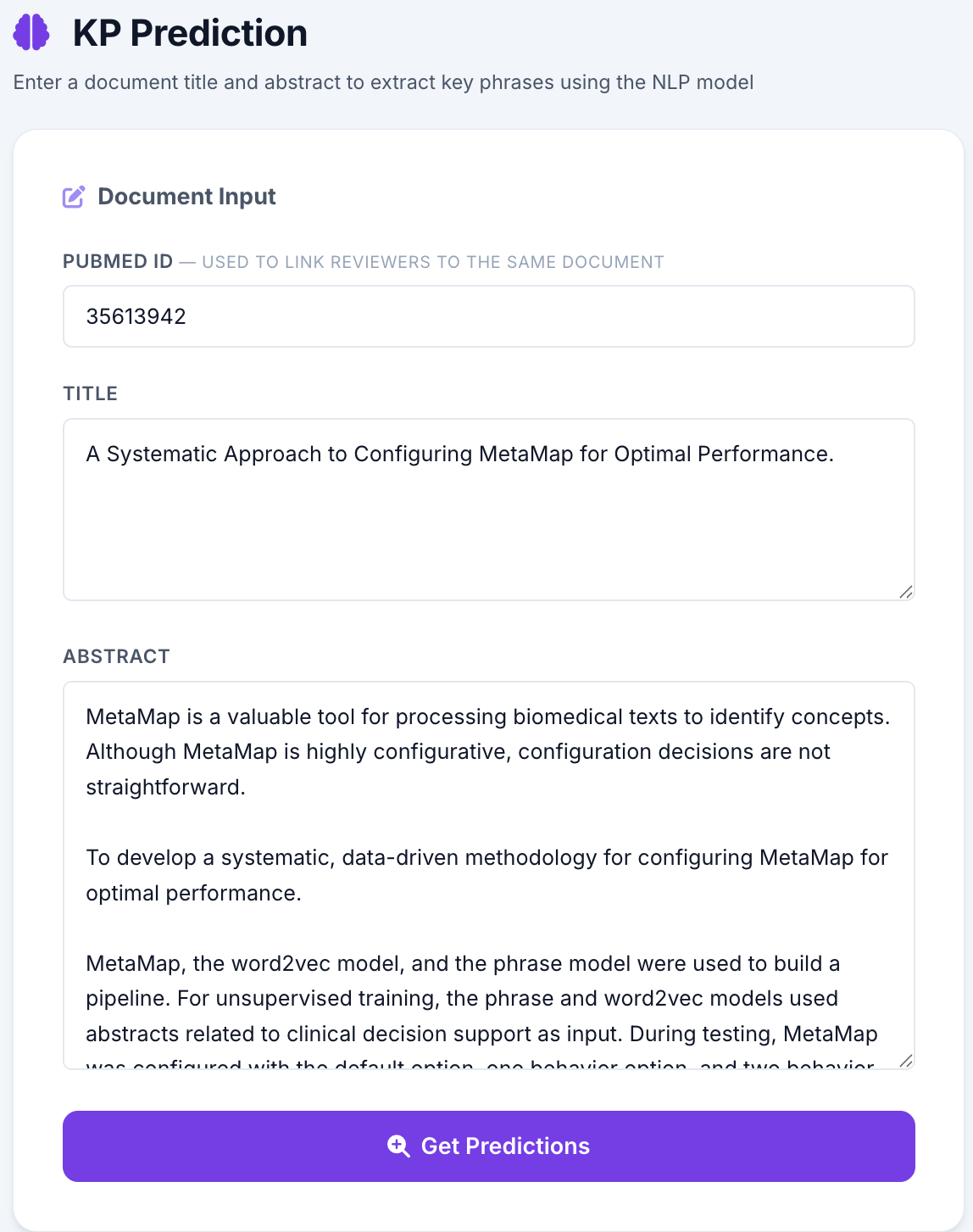
On the Get Predictions page, fill in the form on the left:
- PubMed ID (optional) — type a numeric PubMed ID and press Tab or Enter. The title and abstract fields fill in automatically.
- Title — paper title.
- Abstract — paper abstract text.
- Click Get Predictions.
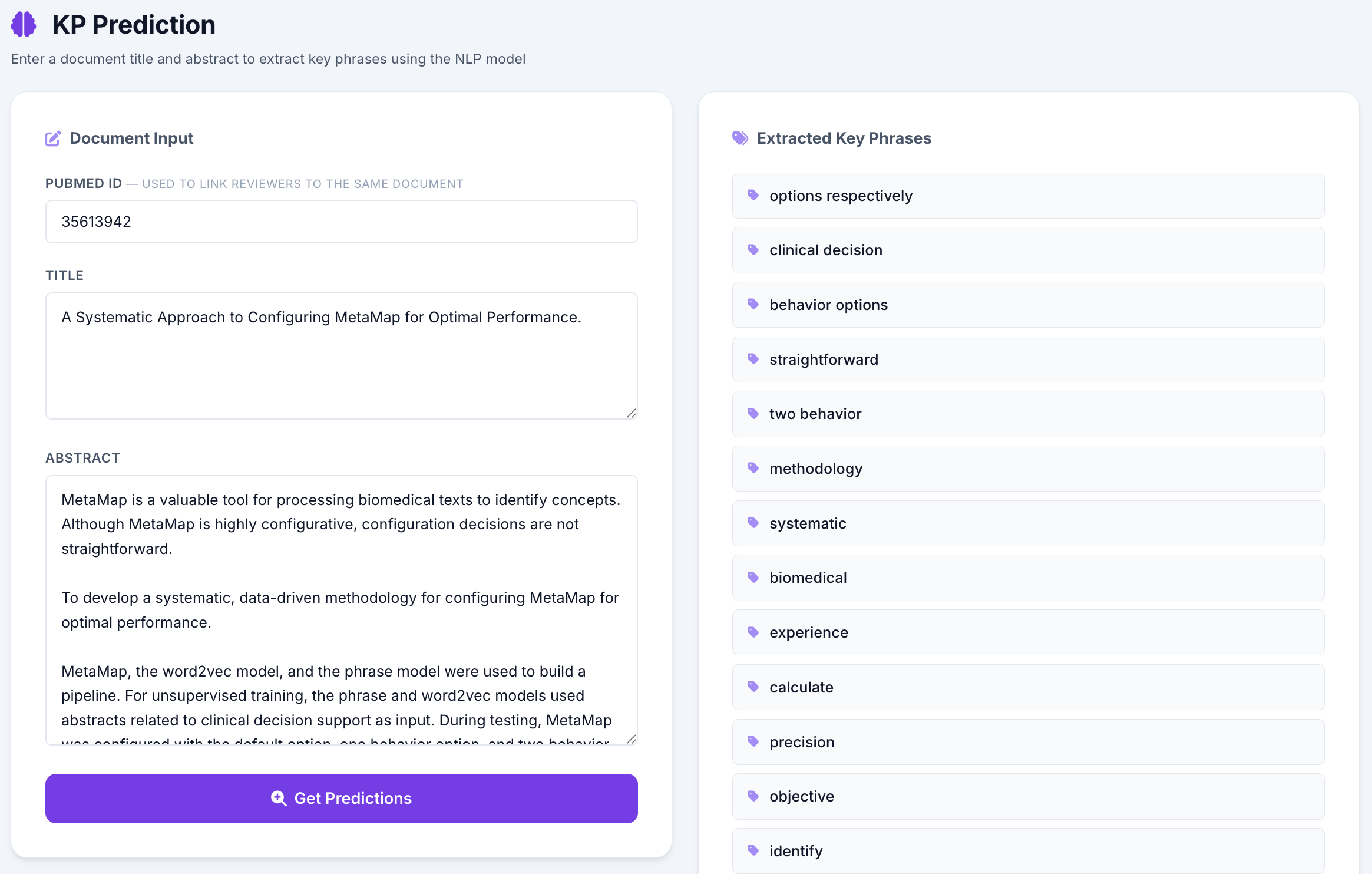
Extracted key phrases appear on the right, ordered by confidence scores. The model takes ~5–15 seconds for the first request (it loads the BiLSTM-CRF + scispaCy pipeline) and is faster afterward.
5 Reviewing key phrases
Open Predictions (the Review page) to annotate each predicted phrase. For every row, toggle one of:
- Yes — accept as a valid key phrase.
- No — reject.
- Not Sure — leave for later (the default).
Your selections save automatically — no submit button needed at this stage.
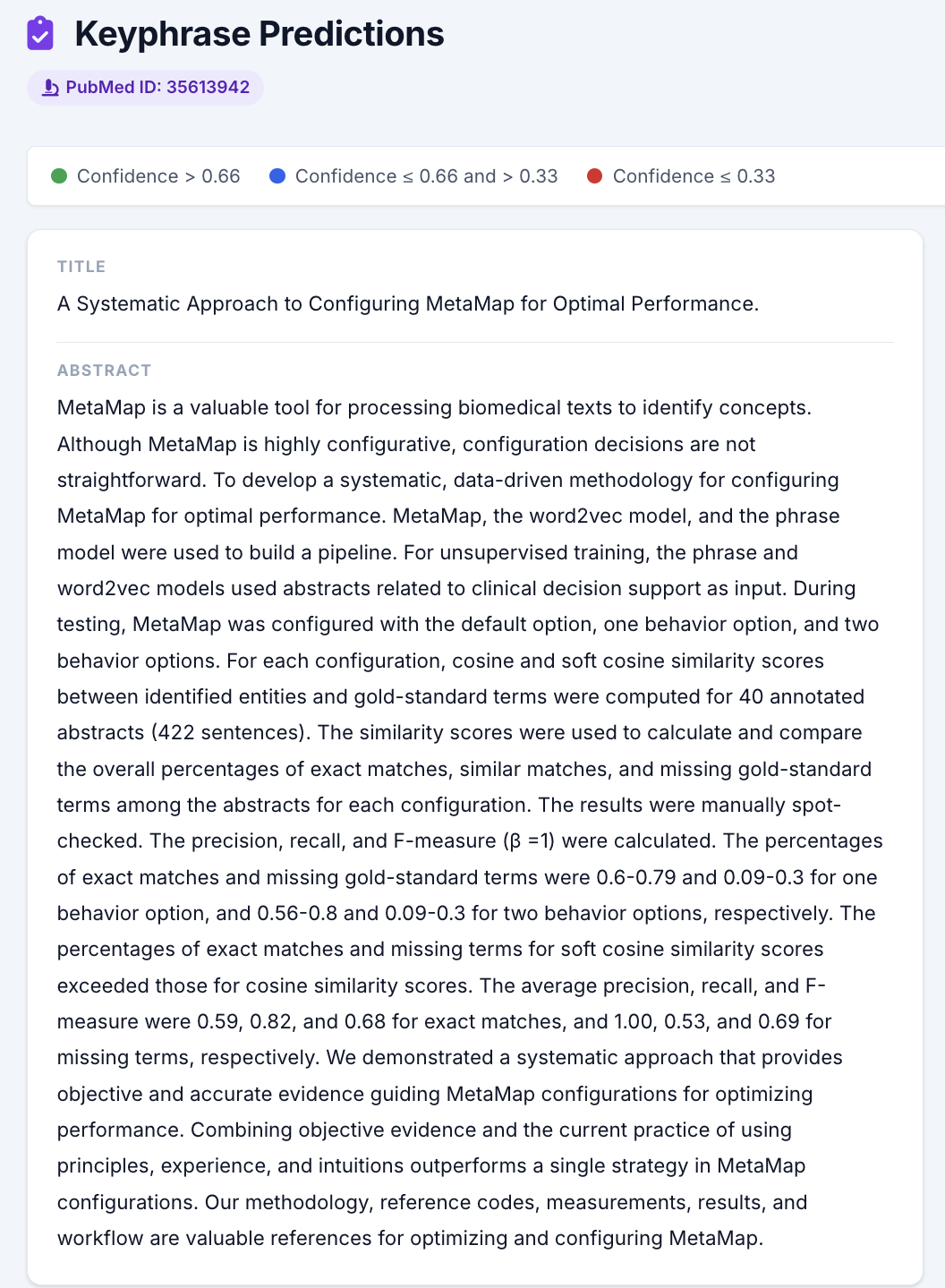
Phrase colors indicate the model's confidence: green = high (>0.67), blue = medium (0.33–0.67), red = low (<0.33).
6 Annotation history
The History page lists every key phrase you've annotated across all papers, plus how other reviewers labeled the same phrase. Use the pagination buttons to navigate larger tables.
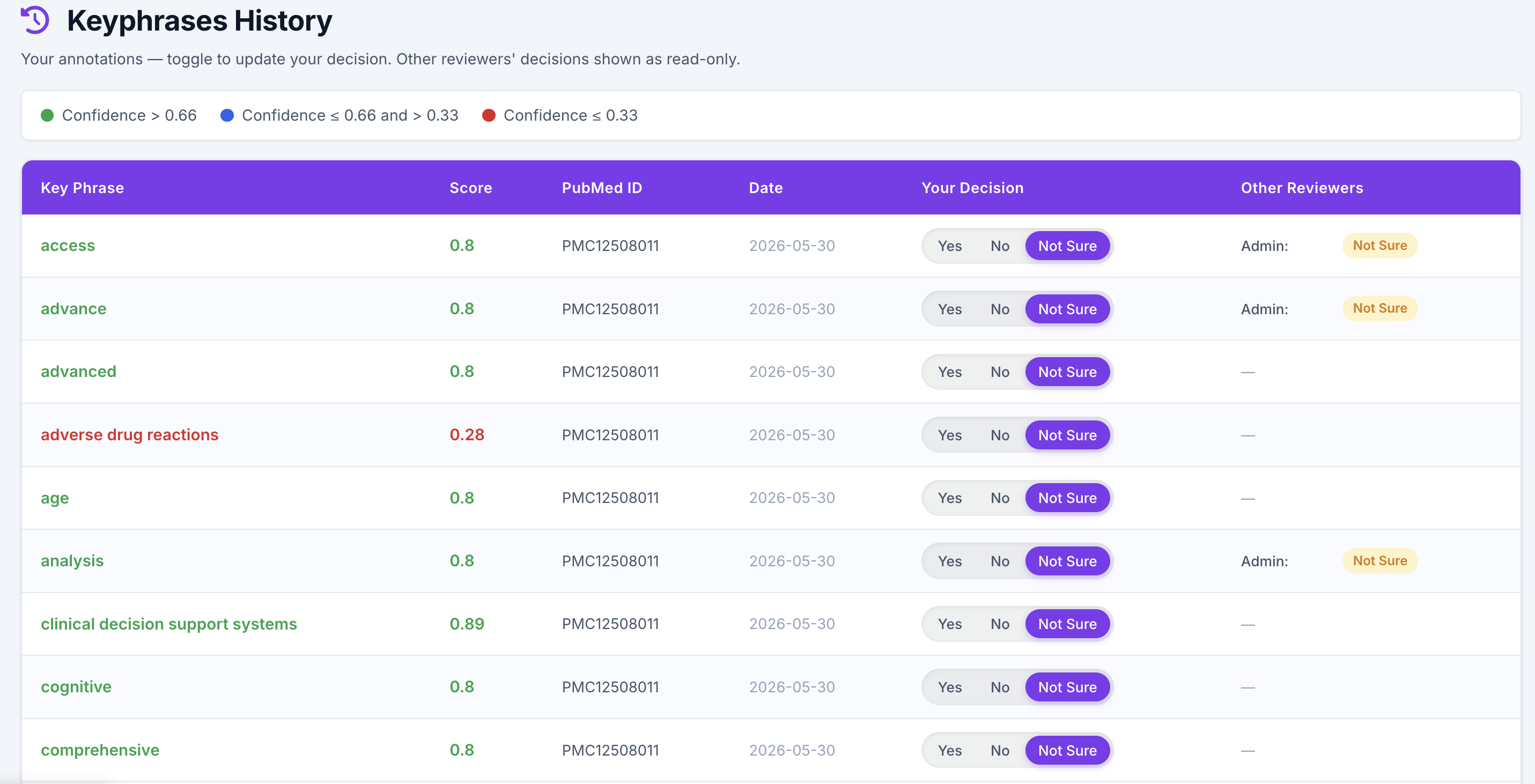
When you're satisfied with the current paper's annotations, click Submit responses at the bottom. This marks the paper as reviewed and redirects you to the Consensus page.
7 Consensus (admin only)
The Consensus view aggregates each key phrase's Yes/No/Not Sure decisions across all reviewers. Admins can override individual decisions and then write the accepted phrases to the gold-standard table.
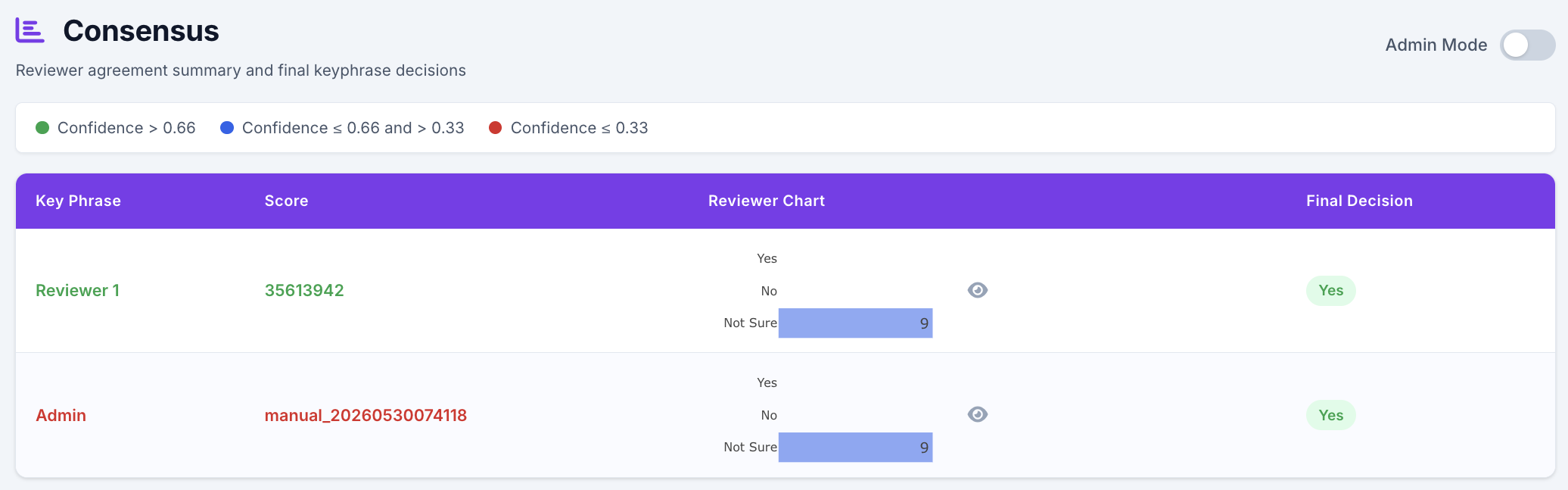
Toggle the Admin mode switch in the top right to enable override controls. Once you're done, click Submit consensus — accepted phrases are written to the gold-standard list.
8 FAQ & troubleshooting
Do other reviewers see my decisions while I'm working ?
Other reviewers can see that you marked a phrase a certain way once they look at the same paper, but they cannot see it in real time while you're annotating. Your decisions do not influence what they see on their own Review page. They make their own calls independently.
What happens if I disagree with another reviewer ?
Disagreement is expected and useful. It's what the Consensus step is for. Make the call you believe is right, and the admin reviewing the Consensus page will see the split and decide whether the phrase goes into the gold-standard list.
The model missed an obvious key phrase. What do I do ?
On the Review page, use the Add Key Phrase field at the top, then type the phrase and press Enter. It joins the list with a Yes pre-marked, and is tagged so the admin can see it was reviewer-added rather than model-predicted.
I made a typo when I added a phrase. Can I delete it ?
Mark it No and add the corrected phrase as a new entry. The wrong one won't reach the gold-standard list.
Is the abstract auto-filled by the PubMed ID always correct ?
It's the abstract NCBI publishes, so yes for the public PubMed text. Older papers may not have an abstract at all. In that case the field stays empty and you can either paste it from somewhere else or work without one. The title field behaves the same way.
Where do I report a bug ?
Email the system administrator with the page URL, what you did, what you expected, and what you saw. Screenshots help a lot.
System administrator: xjing@clemson.edu